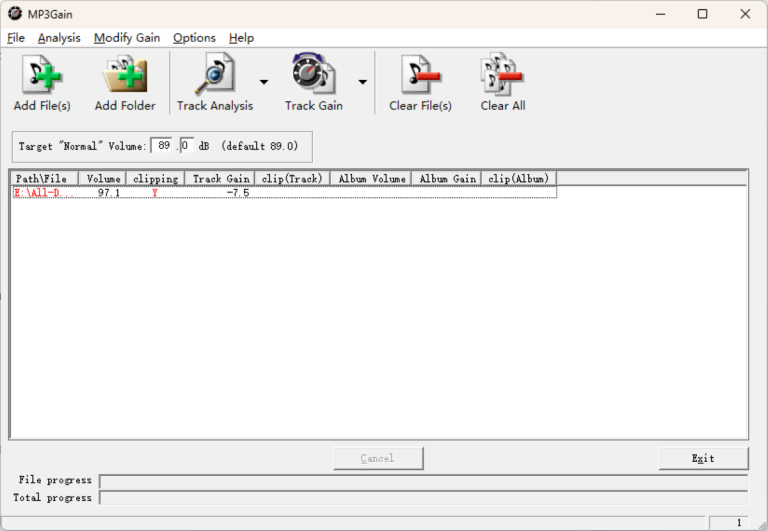
MP3Gain Runtime Error 52: Bad File Name or Number — Fixes
Runtime Error 52 is the Visual Basic 6 error for “Bad file name or number”. In MP3Gain it means the program was handed a file path it cannot work with — the file usually exists, but its name or location contains something this older program cannot parse. It is a close cousin of Error 53 (file not found), but the fix is different: instead of restoring a missing file, you make the path acceptable to MP3Gain.
What triggers Error 52 in MP3Gain
MP3Gain’s GUI and its backend were written long before today’s naming habits. The patterns that most commonly produce Error 52 are:
- Special characters in file or folder names — brackets, ampersands, percent signs, and similar punctuation in a track or folder name can break the path MP3Gain passes to its backend.
- Unicode characters — names containing characters outside your system’s legacy code page (for example, a Japanese or Cyrillic title on a Western-European Windows install) can be mangled into an invalid name.
- Network and cloud paths — files opened straight from a UNC path (
\\NAS\music\…) or a cloud sync folder that serves placeholder files can present paths the program cannot open normally. - Extremely long names or paths — deep folder trees plus long album names push the full path past what VB6-era code handles comfortably.
Fix 1: Isolate the offending file
Error 52 usually blames one bad apple, not the whole batch. Clear the file list, then add your tracks in small groups and run Track Analysis after each group. The group that triggers the error contains the problem file; narrow it down the same way until you find the exact track. Check its name — and its folder’s name — against the patterns above.
Fix 2: Rename to a plain, short path
Copy the problem track to a simple location with a simple name — C:\Music\test.mp3 is the classic test — and analyze the copy. If the copy processes cleanly, the content was never the problem: rename the original file (or its folders) to remove special or Unicode characters, shorten the path, and re-add it. Renaming the file does not touch its tags or audio; if you prefer not to rename your library, keep a plainly named working copy for normalization and copy the processed file back afterwards — MP3Gain’s gain changes live inside the MP3 itself.
Fix 3: Work locally, not over the network
If your library lives on a NAS or in a synced cloud folder, copy the albums you want to normalize to a local drive first, process them there, and copy them back. This sidesteps UNC-path quirks and cloud placeholder files entirely, and processing is faster as a bonus. The same advice applies when MP3Gain is pointed at files on a removable drive that may have changed drive letters since the list was built — a shifted drive letter turns a valid saved path into a bad one.
Fix 4: If Error 52 appears at launch, reset the workspace
When Error 52 strikes before you have added anything — right at startup — MP3Gain may be trying to reopen a remembered file or folder from its last session that no longer parses. Reinstalling cleanly clears that state: uninstall, delete the leftover Mp3Gain folder under C:\Program Files (x86)\SourceForge, restart, and install the full build fresh from the download page. The portable build is a good cross-check here: it keeps its own folder self-contained, so if portable runs fine while the installed copy errors at launch, the installed copy’s saved state or registration is at fault, not your files.
Error 52 vs 53 vs 75 — don’t mix up the fixes
| Error | VB6 meaning | Usual MP3Gain cause |
|---|---|---|
| 52 | Bad file name or number | Path exists but is unparseable: characters, Unicode, network path, extreme length |
| 53 | File not found | File genuinely missing: moved track, quarantined backend, partial install |
| 75 | Path/File access error | File exists and is readable in Explorer, but access is denied — permissions or read-only media |
Match the fix to the code on your screen; all three guides, plus the OCX registration fix, are indexed on the troubleshooting hub.
One more culprit: trailing spaces and dots in names
Windows Explorer quietly tolerates file and folder names that end in a space or a dot — but the underlying system trims those characters when older programs ask for the file, so the name MP3Gain tries to open literally does not match the name on disk. A folder called "Greatest Hits ." or a track saved as "song .mp3" (often the souvenir of a download or a rip from another operating system) is a classic Error 52 trigger. These trailing characters are nearly invisible in Explorer, which is why the file looks perfectly normal. Rename the file or folder, deleting any space or period at the very end of the name, and re-add it. The same applies to names beginning with a space, which some ripping tools produce.
Rule out a broken install
If renaming does not help, a clean full install or the portable build will tell you whether the fault is in the program or the path.
Go to the Download PageNext steps: All MP3Gain Fixes · Fix Runtime Error 53 · Fix Runtime Error 75