MP3Gain Tags Not Working? APEv2 Tag Problems Explained & Fixed
MP3Gain stores what it does inside your MP3 files as tags — and that is exactly where its strangest problems live. If your player shows garbled titles after processing, a player ignores the new volume, or undo information seems to vanish, the audio is almost certainly fine: two tag formats are stepping on each other. This page explains how MP3Gain’s tags work, why conflicts happen, and how to fix them without re-ripping anything.
How MP3Gain uses tags (and why it needs them)
MP3Gain changes volume losslessly by adjusting a gain value inside each MP3 frame — it never re-encodes the audio. To make that change reversible, it writes “undo” information into the file’s tags: apply a gain, and the tag remembers the original value, so Undo can restore the file exactly. By default MP3Gain stores this data in APEv2 tags (you will see fields labelled MP3GAIN_MINMAX, MP3GAIN_ALBUM_MINMAX and REPLAYGAIN_TRACK_GAIN), and its Options dialog lets you choose whether tags are saved in APEv2 or ID3v2 format instead. That choice is the root of most tag trouble.
Problem 1: Titles or characters look garbled in your player
APEv2 and ID3v2 handle text encoding differently, and some players and tag editors read one format while ignoring — or misreading — the other. If titles show wrong characters after MP3Gain processing, the usual story is that a tool in your chain rewrote or stripped the APEv2 tag, or is displaying the file’s tags in the wrong encoding. Your audio data is untouched; only metadata display is affected. The fix: in MP3Gain, open Options > Tags and switch tag saving to ID3v2 if your player ecosystem is ID3-based, then re-apply analysis so the gain data is written in the format your player actually reads. In a dedicated tag editor (such as Mp3tag), you can also check which tag types a file carries and confirm the APEv2 block is present and intact.
Problem 2: Another program “ate” the undo information
Some tag editors and library managers rewrite a file’s tags wholesale when you edit them — and silently discard tag types they do not manage, including MP3Gain’s APEv2 undo data. After that happens, MP3Gain can no longer undo the gain change for that file, because the record of the original value is gone. Prevention is simple: do your tag editing before normalizing, or re-run MP3Gain analysis after any bulk tag edit so fresh undo data is written. And before any large tag operation on a normalized library, a backup copy of the files is the only true undo — a point we repeat in the uninstall guide, because removing MP3Gain does not remove its tags either.
Problem 3: Your player ignores the volume change
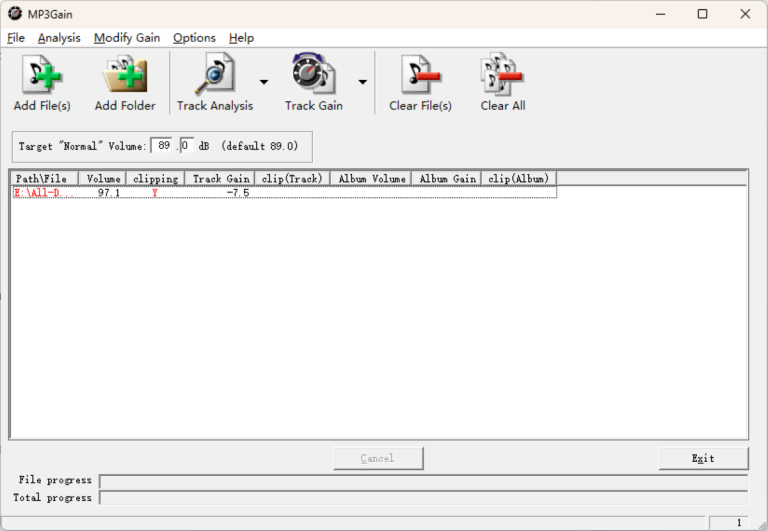
This one is usually a misunderstanding rather than a bug. MP3Gain changes the audio itself — the gain is applied to the MP3 frames, so every player plays the file at the new volume, tag support or not. What players can ignore is ReplayGain-style tag data when a tool has only written values without applying them (some tools scan and tag but do not modify the audio). If a file seems unchanged after MP3Gain, check in MP3Gain’s list view that you clicked Track Gain / Album Gain (which applies) and not only Analysis (which only measures and tags). If the gain column shows the change was applied, the file itself is louder or quieter everywhere — test it in a second player before blaming the tags.
Problem 4: Duplicate or conflicting gain tags
Files that passed through several tools over the years can carry gain information in more than one place — APEv2 fields from MP3Gain plus ID3v2 ReplayGain frames from another program — and different players honour different ones, so the same file plays at different volumes in different apps. The clean-up: pick one system. If you standardize with MP3Gain, remove the other tool’s ReplayGain tags in your tag editor (in Mp3tag, the extended-tags view shows REPLAYGAIN_* fields so you can see exactly what is stored), then re-apply gain with MP3Gain so a single, consistent set of values remains.
Removing MP3Gain’s tags on purpose
If you want the tags gone — for example, before handing files to a strict validator — MP3Gain itself offers tag removal: load the files, then use Options > Tags > Remove tags from files. Understand what that means before you click: removing the tags deletes the undo information, so the gain changes already applied to those files become permanent. The audio keeps its adjusted volume; only the ability to reverse it disappears.
See for yourself: inspect a file’s tags in Mp3tag
If you want to verify what is actually stored in a processed file — rather than trusting any program’s summary, including MP3Gain’s — the free tag editor Mp3tag shows you. Open the file in Mp3tag, select it, and press Alt+T (Extended tags). You will see every tag frame the file carries: look for REPLAYGAIN_TRACK_GAIN, MP3GAIN_MINMAX and MP3GAIN_ALBUM_MINMAX to confirm MP3Gain’s data is present, and note whether a second tool has added its own competing ReplayGain values. Mp3tag’s main panel also shows which tag types exist in the file (ID3v1, ID3v2, APEv2) — if APEv2 is missing from a file MP3Gain definitely processed, something downstream stripped it, which pinpoints where your undo data went. None of this inspection changes the file; Mp3tag only writes when you explicitly save.
More MP3Gain problems, solved
Install failures, runtime errors, OCX messages and startup problems — every fix in one place.
Open the Troubleshooting HubNext steps: Uninstall MP3Gain & Undo Changes · Fix Runtime Error 75 · Download MP3Gain